
Spaces:
Sleeping

Sleeping
| title: "Data Cleansing in Excel" | |
| original_url: "https://tds.s-anand.net/#/data-cleansing-in-excel?id=data-cleansing-in-excel" | |
| downloaded_at: "2025-06-08T23:27:03.007571" | |
| [Data Cleansing in Excel](#/data-cleansing-in-excel?id=data-cleansing-in-excel) | |
| ------------------------------------------------------------------------------- | |
| [](https://youtu.be/7du7xkqeu4s) | |
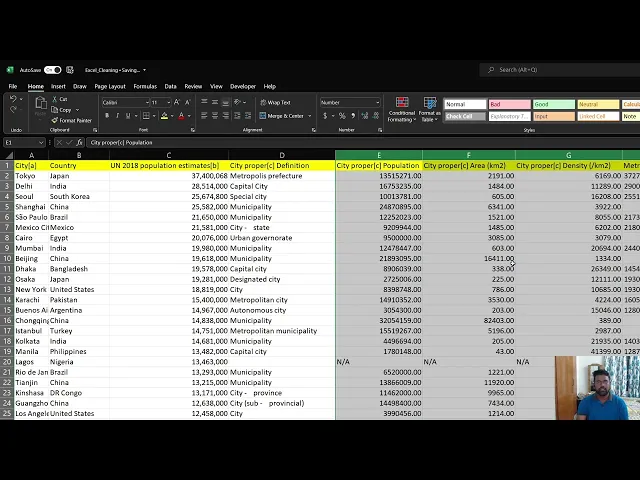
| You’ll learn basic but essential data cleaning techniques in Excel, covering: | |
| * **Find and Replace**: Use Ctrl+H to replace or remove specific terms (e.g., removing “[more]” from country names). | |
| * **Changing Data Formats**: Convert columns from general to numerical format. | |
| * **Removing Extra Spaces**: Use the TRIM function to clean up unnecessary spaces in text. | |
| * **Identifying and Removing Blank Cells**: Highlight and delete entire rows with blank cells using the “Go To Special” function. | |
| * **Removing Duplicates**: Use the “Remove Duplicates” feature to eliminate duplicate entries, demonstrated with country names. | |
| Here are links used in the video: | |
| * [List of Largest Cities Excel file](https://docs.google.com/spreadsheets/d/1jl8tHGoxmIba4J78aJVfT9jtZv7lfCbV/view) | |
| [Previous | |
| 5. Data Preparation](#/data-preparation) | |
| [Next | |
| Data Transformation in Excel](#/data-transformation-in-excel) |